
The geo-location question allows participants to answer by entering their address or using their current location. The location question is compatible with desktops, tablets and mobile touchscreen devises.
To add a location question:
- Create a questionnaire and click on [ADD QUESTIONS].
- Select the Location question from the Basic Library, Specialty Questions folder and click on the [+] to add it to your questionnaire.
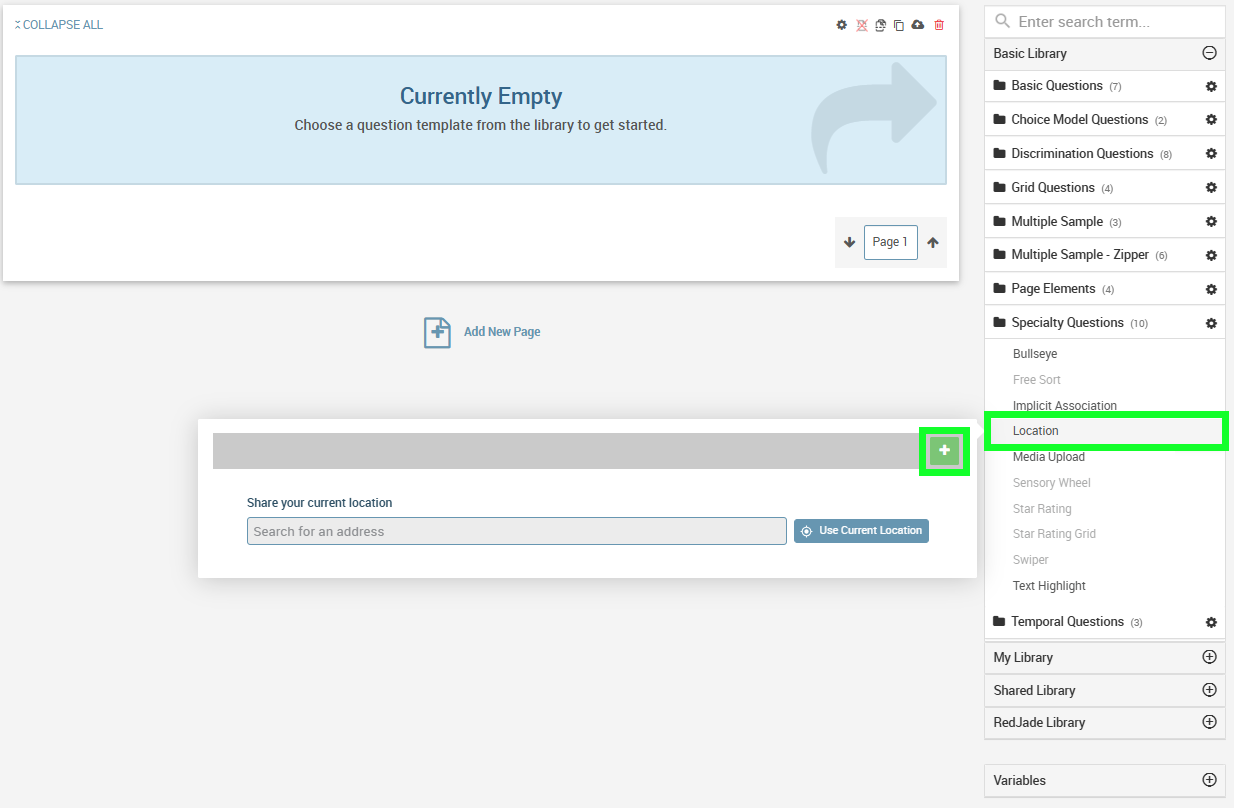
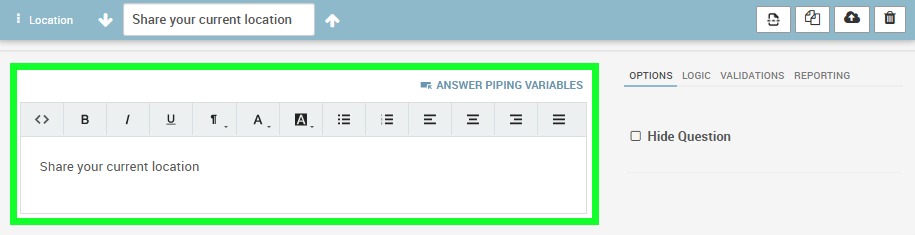
- Click on the Location question to open the configuration window. Enter the question in the Question Text Box. Use the editing toolbar to format question text as desired.
- Optionally, you can choose to Hide Question under the OPTIONS tab to the right.
If the location question is hidden the participant's browser automatically prompts them to allow using their current location. If they choose not to allow their location to be shared then no location data is recorded and they can still proceed with the surveys.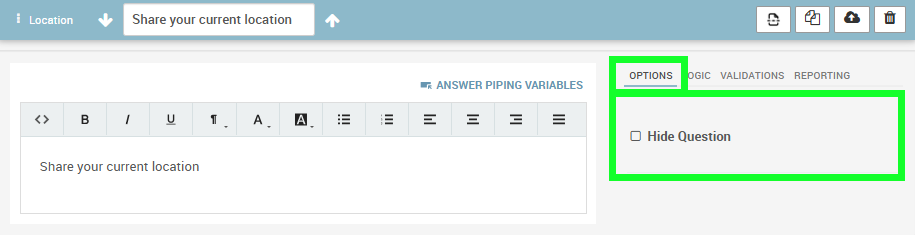
- Click anywhere off the window to close it. The question updates on the page.
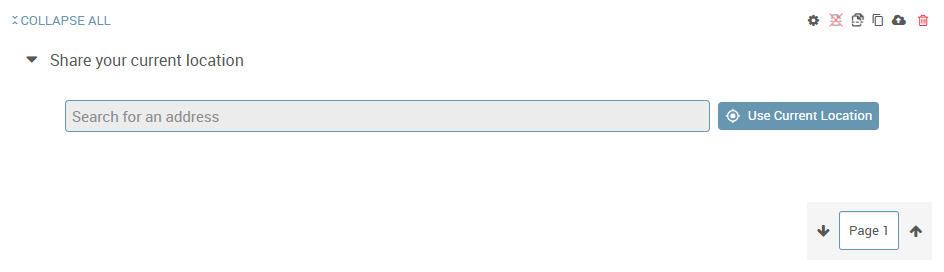
- Click on [PREVIEW] to review an example of how the question appears for consumers.
To manually enter a location address: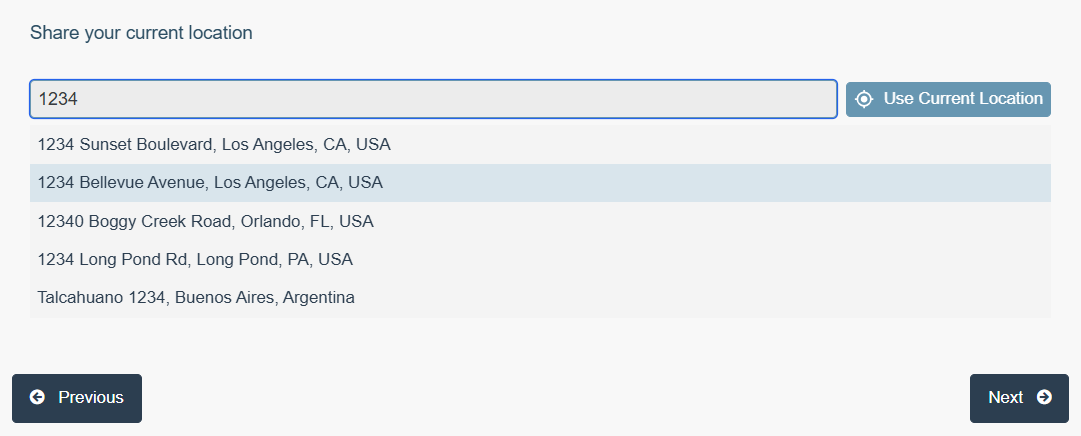
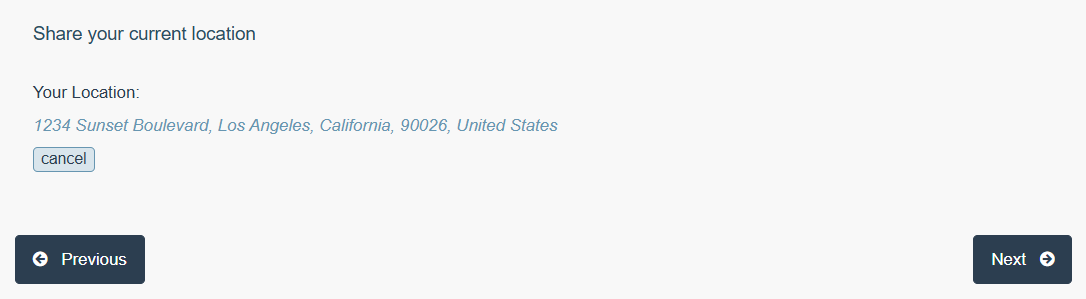
- Click in the "Search for an address" field and type in an address.
- Select the address search result from the dropdown list.
- The selected address displays as your location.
- Click "cancel" to clear and reenter the address.
To use your device's geo-location: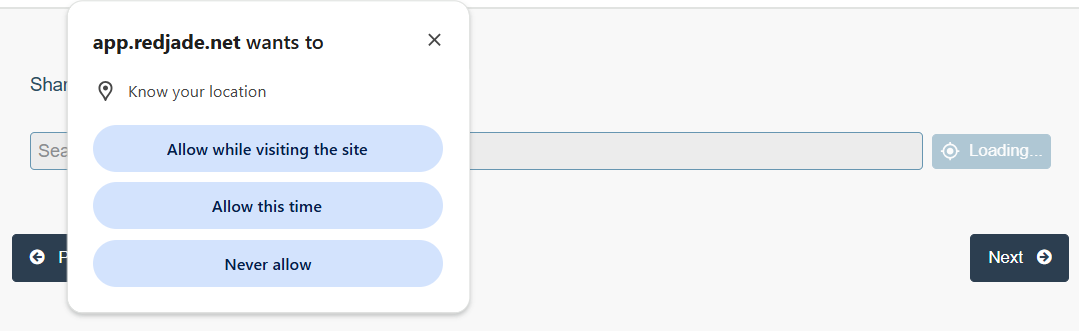
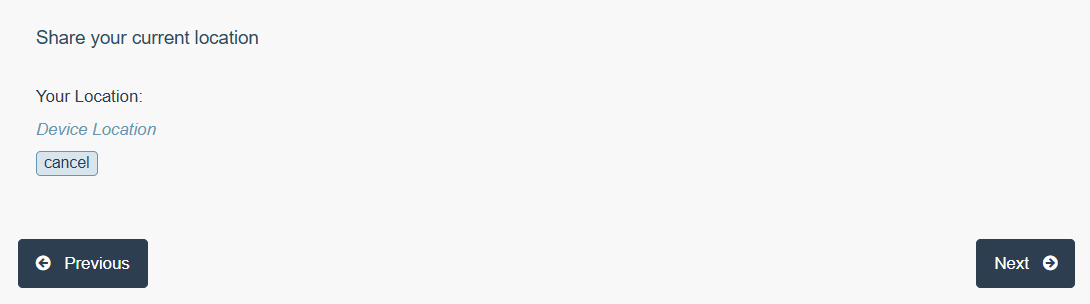
- Click the "Use Current Location" button.
- Your browser will prompt to allow using your location.
- "Device Location" displays as your location.
- Click "cancel" to clear and reenter the address.
NOTE – If the participant chooses not to allow their location to be shared then no location data is recorded and they can still proceed with the surveys. When finished with the questionnaire, click on the X in the upper-right corner of a questionnaire builder to close it. If you have outstanding changes, you will be prompted to save. RedJade returns you to the Surveys page for the test.
The location data is available from your test's Topline Analysis and raw data can be downloaded to Excel. The location's GPS coordinates (longitude and latitude) and full address are provided.